Last updated: November 19, 2026
Quick Answer: A debt payoff calculator for weekly paychecks works best when you enter each weekly or biweekly payment on its actual date; when the tool only takes one monthly figure, use a monthly equivalent instead. Enter each weekly or biweekly payment as a separate payment, or convert it to a monthly equivalent only when the calculator accepts monthly inputs. The steps below show which method fits your debt payoff calculator and how to keep cash flow honest.
Key Takeaways
- Weekly pay does not fit every debt payoff calculator, so the input method matters as much as the debt balance.
- When extra payments are allowed, list each paycheck-sized payment on its own date instead of averaging it into one month.
- When the tool only accepts monthly payments, convert your paycheck pattern into a monthly total before you enter it.
- A 26-paycheck year can change the math, because two months may contain a third paycheck that is easy to miss.
- This is information, not financial advice; a qualified adviser should look at your own situation if the numbers affect a big decision.
This article explains how weekly pay, split monthly payments, and paycheck-based cash flow fit into a debt payoff calculator for weekly paychecks. It also shows where people get the timing wrong and how to avoid a fake payoff date. For a broader look at calculator formats, see the hub on debt payoff calculator interface choices.
Who this applies to, and what you already need
This applies to you if you get paid weekly or biweekly, and you want a debt payoff calculator to show a realistic timeline without pretending your paycheck is monthly. You need your current debt balance, the payment due date, the minimum payment, and a rough sense of which paychecks are available for debt.
Not every setup fits this page. If your income changes by the week, this is not the right tool for a realistic timeline. It also is not built for debt settlement, income shocks, or a full household budget. Those need a different approach and, in some cases, a qualified adviser.
What the calculator needs from you:
- Debt type and current balance
- APR or interest rate, if the tool asks for it
- Minimum payment
- Extra payment amount or payment dates
- Pay schedule, such as every Friday or every other Friday
- Any months with a third paycheck
Here’s the catch: a calculator can only be as accurate as the payment timing you feed it. A $400 payment on the 1st is not the same as two $200 payments on the 1st and 15th, because interest accrues between those dates.
How do I enter weekly payments in a debt payoff calculator?
Enter weekly payments as separate dated payments when the calculator allows it; that is the cleanest match for a weekly paycheck. When the calculator only accepts one monthly payment number, turn the weekly pattern into a monthly total first and use that figure.
Every Friday, money moves. Fast. Picture that money leaving your checking account before the next weekend — the software should mirror that reality, not smooth it into something prettier. The choice depends on whether the tool tracks dates or just monthly totals, and yes, that choice can shift the payoff date more than you might expect.
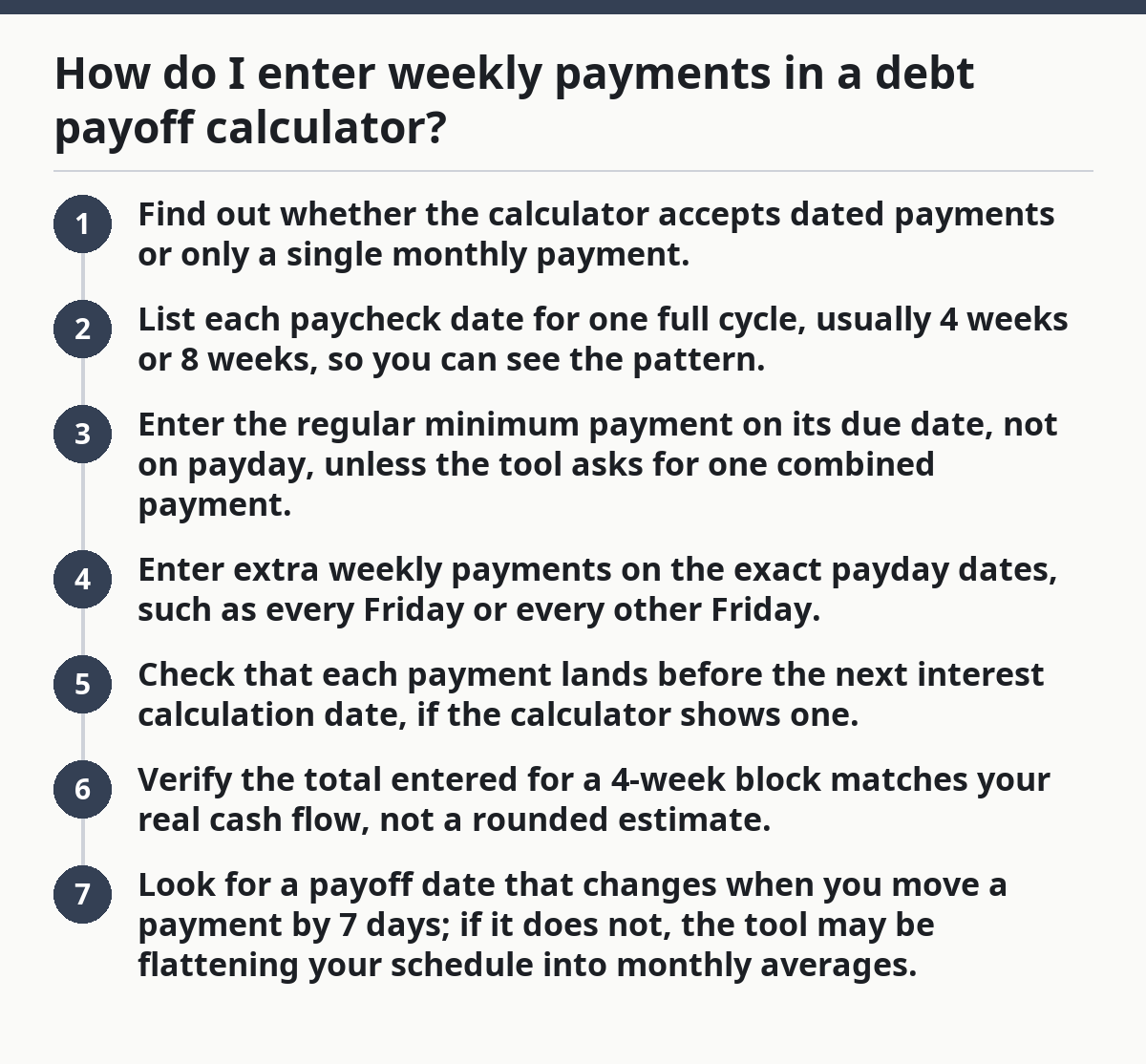
Use this order:
- Find out whether the calculator accepts dated payments or only a single monthly payment.
- List each paycheck date for one full cycle, usually 4 weeks or 8 weeks, so you can see the pattern.
- Enter the regular minimum payment on its due date, not on payday, unless the tool asks for one combined payment.
- Enter extra weekly payments on the exact payday dates, such as every Friday or every other Friday.
- Check that each payment lands before the next interest calculation date, if the calculator shows one.
- Verify the total entered for a 4-week block matches your real cash flow, not a rounded estimate.
- Look for a payoff date that changes when you move a payment by 7 days; if it does not, the tool may be flattening your schedule into monthly averages.
A problem shows up quickly when the calculator asks for one payment and you try to force four weekly entries into it by hand. That can double-count money or wipe out the timing effect entirely. The right answer keeps the dates visible. Period.
Two terms matter here. Split monthly payments means dividing one monthly debt payment into smaller pieces across the month. Payment frequency conversion means turning weekly or biweekly pay into a monthly input the calculator can use.
How weekly, biweekly, and monthly inputs differ
Monthly input can hide timing; weekly input exposes it. When your calculator has a “payment frequency” field, choose the setting that matches the actual pay schedule, not the one that sounds easiest.
Use these rules:
- Weekly pay: enter 4 weekly payments in a 4-week month, then test a 5-week month if the tool allows it
- Biweekly pay: enter 26 pay periods per year if the calculator lets you model a full year
- Monthly-only tool: use the monthly total from your expected paychecks, not a rough weekly guess
- Third-paycheck months: add that extra paycheck only if you will truly direct it to debt
A common slip is typing in $500 monthly because $125 times 4 looks tidy. Real calendars are messier. That neat little shortcut can miss the fifth Friday or the extra-paycheck month, and then the payoff date lands in the wrong county.
How do I convert weekly pay to a monthly number without fooling the calculator?
Convert weekly pay to a monthly number with a calendar-based total, not by multiplying one week by 4 and calling it finished. The cleanest method is to total all paychecks over a normal month or a full 12-month period, then divide by 12 if the calculator needs a monthly average.
Your pay may hit every Friday, but the debt calculator may only offer one box for “monthly extra payment.” That box still needs a figure tied to reality. Pick the wrong conversion and the debt can appear to disappear sooner than it actually will.
Use one of these approaches:
- Calendar month method: Add the actual paychecks that land in that month. This works best when you know the exact dates.
- Annual average method: Add all expected paychecks in a year, including any 26-paycheck pattern, then divide by 12.
- Monthly budget method: Use the amount you can send every month after essentials, then keep the weekly cash flow in a separate note.
The annual average method is often better for a 26-paycheck year, because not every month has the same number of Fridays. One month grabs a third paycheck; another does not. If your calculator supports yearly totals, use that instead of a rough monthly estimate.
A monthly conversion is good enough only when the calculator ignores dates. It is not good enough if interest timing or extra principal payments matter. On the flip side, if the tool is simple and date-blind, a monthly total keeps the math consistent.
What should I check before I trust the payoff date?
Check the payment frequency, the interest timing, and the month count before you trust the date. A debt payoff calculator can only show a useful result when the schedule matches your actual cash flow and due dates.
Suppose the calculator says you’re done in 19 months, but your paydays do not line up with the loan’s interest cycle. The number looks precise and still misses the real-world timing. That is why the setup check matters more than the final screen.
Check these items before you accept the result:
- Due date alignment: Is the minimum payment scheduled before the due date each month?
- Payment count: Did you enter 12 monthly payments, 26 biweekly payments, or 52 weekly payments only if the tool can handle them?
- Interest timing: Does the tool apply interest daily, monthly, or by statement cycle?
- Third paycheck month: Did you account for the extra paycheck that shows up in some years?
- Extra payment rule: Did you send extra money to principal, or did the calculator treat it as a regular payment? If you are unsure, check the tool’s notes or ask a qualified financial professional.
Want a rough test? Remove one weekly extra payment and see how much the payoff date moves. If the date barely changes, the calculator may be too blunt for a weekly paycheck schedule. If the date shifts by a meaningful amount, the timing is being counted.
Many people trust a monthly shortcut because it is easy. Honestly, easy is not the same as accurate.
When should you stop using the monthly shortcut?
Stop using a monthly shortcut when the calculator no longer matches the way your money actually lands. In those cases, the shortcut can distort your cash flow and make the payoff timeline look cleaner than it is.
Picture this: you get paid every Friday, your rent comes out on the 1st, and your debt payment lands on the 15th. A monthly average hides the gap between those dates. That gap matters if the checking balance gets tight.
Your calculator only accepts one monthly number: The tool cannot show weekly timing — use a monthly average, but keep a separate note of the actual pay dates.
Your month has a third paycheck: The usual pattern breaks — add that extra paycheck only to the month it actually arrives.
Your debt interest is daily: The balance changes between paydays — enter dated payments if the calculator allows it, or the date may be off.
Your cash flow is tight: The timing of each paycheck matters more than the monthly total — use paycheck-based cash flow instead of a flat average.
Your debt includes multiple due dates: One monthly payment box may hide real priority order — split the payments by due date or use a more detailed tool.
If any of these show up, the standard monthly input stops being the right tool. That does not mean the calculator is useless. It means the input method needs to change.
The mistakes people make with weekly pay
People usually make the same four mistakes, and each one changes the payoff result in a different way. The good news is that each mistake has a clean fix.
Picture this: you are trying to be careful, but the calculator still gives you a payoff date that feels too optimistic. The problem is often not the debt itself. It is the way the payments were entered.
Common errors:
- Averaging too early — Turning 52 weekly paychecks into one flat number can hide the months with five Fridays. The fix is to use actual dates when possible.
- Ignoring the third paycheck — That extra paycheck disappears from the plan, which makes the payoff timeline longer than it needs to be. The fix is to flag the month it lands in.
- Mixing minimums and extras — A calculator may treat one total as a required payment. The fix is to enter minimum and extra amounts separately when the tool supports it, and to check the result with a qualified financial professional if the payoff plan affects a major decision.
- Putting all payments on one date — This can make interest look lower or higher than it will be in real life. The fix is to split payments across the real pay schedule.
- Using a monthly number from memory — Round numbers are easy to type and often wrong. The fix is to total a full month or 12 months of pay on paper first.
These errors are easy to catch with a 1-page check. Write down one month of pay dates and one month of debt due dates, then compare them before you enter anything.
For a deeper look at calculator layout and input fields, use the debt payoff calculator interface choices hub. That page helps when the tool itself is the obstacle.
What if my paycheck schedule does not fit the standard model?
You need a different setup when your paycheck pattern is not steady. A weekly paycheck schedule is simple compared with variable shifts, commission spikes, or missed pay periods.
Picture this: some months have five paydays, some have four, and one paycheck is already reserved for rent. The calculator still needs a pattern, but the pattern has to match what really hits your account. That is where a standard monthly estimate stops helping.
Modify the setup like this:
- When you are paid weekly, use a 4-week block first, then test a 5-week month.
- When you are paid biweekly, model 26 pay periods in a year instead of 24.
- If a paycheck has a specific purpose, do not count it as debt money.
- If a debt payment is due before payday, move the payment date in the calculator to avoid a false zero balance.
- If the calculator cannot handle your schedule, use a simpler monthly average and mark the weak spots by hand.
A 26-paycheck year can make the difference between a flat plan and a real one. Two extra pay periods per year is not a small detail when one of them lines up with a high-interest balance. If the calculator can show that, use it. If it cannot, keep the workbook notes beside it.
The right method is the one that matches your pay schedule and your cash flow. Not the prettiest one.
FAQ
Can I enter weekly payments?
Yes, if the calculator accepts dated entries or a weekly frequency field. Enter each weekly payment on the actual payday so the payoff date reflects real cash flow, not a monthly average. If the tool only takes one number, convert the weekly pattern into a monthly total first.
How do I convert weekly to monthly?
Convert weekly to monthly by using the real calendar, not by guessing. Add the paychecks in a full month, or total a full year of pay and divide by 12 if the calculator needs a monthly figure. That keeps a 26-paycheck year from getting flattened into the wrong amount.
Does weekly pay speed up payoff?
Weekly pay can speed up payoff if you send each paycheck to debt sooner and the calculator counts those earlier principal payments. The gain comes from timing, not from the paycheck label itself. If the calculator ignores dates, that speedup may not show up in the result, even when it is real.
Drafted with AI; not yet reviewed by a person.