Last updated: November 19, 2026
Quick Answer: Use the exact current balance, APR, minimum payment, and payment date from your statement; in most cases, that is the difference between a payoff estimate that is close and one that is off by months. A debt payoff calculator only works when the balance, APR, minimum payment, and payment date are entered the right way. Get those fields wrong, and the payoff date will be wrong too. This guide on How to use a debt payoff calculator without making input mistakes shows how to enter each field, spot common input errors, and verify the result before you trust it.
Key Takeaways
- Use the current balance shown by the lender, not the original loan amount.
- Enter APR exactly as the calculator expects it, or the schedule can drift fast.
- Match payment dates and payment frequency to your real billing cycle.
- Watch for commas, percent signs, rounded figures, and duplicate debts.
- If a calculator result looks odd, the input fields are the first place to check.
For your own situation, a qualified adviser can help you check how a calculator result fits your budget and debts, and the CFPB explains that payoff plans should be based on the amounts, rates, and due dates you actually owe. Consumer Financial Protection Bureau
Who this is for, and what the calculator needs
This is for anyone entering debt payoff calculator input for credit cards, personal loans, student loans, or similar balances. It assumes you already have your latest statement, know your regular payment amount, and can find the APR, payment due date, and current balance on the bill.
Picture this: you’re staring at three cards, one loan, and a calculator screen with empty fields. The job is not to guess. The job is to match the numbers on your statements to the fields the calculator asks for, down to the cents and the date format.
That matters because payoff tools are only as good as the numbers you feed them. If you enter an original loan amount instead of a current balance, the result can be off by months. If you type a monthly payment into a weekly field, the schedule breaks in a quieter way.
Use the hub on debt payoff calculator interface choices if you also need help deciding which kind of calculator fits your setup. This page stays on input accuracy only.
Before you start, gather these items:
- Your latest statement for each debt
- The current balance shown on that statement
- The APR or interest rate line
- The minimum payment
- The next payment due date
- Any extra amount you plan to pay
Current balance means the amount you owe right now, not the amount you borrowed. APR means annual percentage rate, the yearly cost of interest before you enter fees or compounding details the tool may or may not ask for.
How do I enter the balance, APR, and payment date correctly?
Enter each value exactly in the format the calculator asks for, then check it against the statement line by line. That sounds basic, but most input mistakes come from format, not math.
Picture this: you’ve opened the calculator, and every field looks familiar. The trouble is that “familiar” is not the same as “correct.” A balance entered with the wrong decimal, or a date entered in the wrong month/day order, can change the whole payoff path.
- Copy the current balance from the statement. Use the exact amount listed on the most recent statement, such as $4,862.37, not the original loan amount or a rounded estimate. Verify that the balance includes only what the lender says is outstanding. If the number looks like a starting principal balance, you have the wrong figure.
- Enter APR as the calculator expects it. Some tools want 18.99%; others want 18.99 typed without the percent sign, and some calculators or finance pages use decimal form instead. Check the field label before you type, and verify the format against the tool’s help text or instructions. If the result jumps wildly after a small APR change, you likely entered a decimal point in the wrong place.
- Use the minimum payment from the statement. Type the exact minimum due, such as $125.00, if the calculator asks for a minimum payment. Verify whether the tool wants the current minimum or your planned extra payment. If you put the total payment into both fields, you will double-count.
- Match the payment date format. If the tool asks for a due date, enter the next scheduled payment date in the format it shows, such as 03/15/2027 or 15 Mar 2027. Verify whether the site uses month/day/year or day/month/year. If the payoff date shifts by a full month, the format is probably flipped.
- Set the payment frequency correctly. Choose monthly only if you pay once a month. If you make biweekly or weekly payments, the calculator needs that exact cadence. Verify that the frequency matches your actual bill cycle, not your payroll cycle. If the calendar preview shows too few or too many payments, the frequency is wrong.
- Check rounding rules. Some calculators round to the nearest cent; others round payment timing to whole months. Verify whether the tool rounds balances, interest, or dates. If a payoff date moves by a month after a one-cent change, the calculator is using coarse rounding.
- Separate each debt into its own line. Enter every card or loan as a separate item with its own balance, APR, and minimum payment. Verify that you did not merge two debts into one row. If one debt has a 0% promotional rate and another has a variable rate, mixing them will distort the result.
- Review the final summary before you trust it. Compare the entered values against the statement one more time: balance, APR, minimum, and date. Verify that the payoff order and total payment amounts look consistent with the numbers you typed. If the calculator asks for fees, grace periods, or extra payments you do not recognize, stop and reread the labels.
The first pass usually takes about 5 to 10 minutes per debt, and it can save you from chasing a fake payoff date later.
What mistakes happen most often?
The most common mistakes are simple, and they usually come from typing the right number into the wrong field. One small swap can make the schedule look neat while still being wrong.
Picture this: the calculator returns a payoff date that looks too good to be true. That is usually not a math miracle. It’s usually a balance format error, a date mismatch, or a payment amount entered twice.
Here are the mistakes that come up again and again:
-
Using the original balance instead of the current balance.
Consequence: the calculator acts like you owe more than you do, so the payoff timeline stretches.
Correct move: pull the latest statement balance, not the opening loan amount. -
Typing 18.99 as 18.99% when the field expects 0.1899.
Consequence: the APR may be treated as much larger or smaller than intended, depending on the tool; if you are unsure, consult the calculator help text or a qualified professional.
Correct move: read the field label and the help text before entering the rate. -
Putting an extra payment in the minimum payment box.
Consequence: the calculator double-counts what you can pay, and the payoff date looks faster than it is.
Correct move: keep minimum payment and extra payment in separate fields. -
Entering dates in the wrong order.
Consequence: a due date can become a different day or month, which shifts the payoff schedule.
Correct move: use the exact date format shown on the screen, not the one you use in daily life. -
Rounding balances too early.
Consequence: dropping cents on several debts can change the final month of payoff, especially on older balances.
Correct move: enter the full cents shown on the statement. -
Mixing up monthly and biweekly payments.
Consequence: the calculator may assume 12 payments a year when you actually make 26 smaller payments, or the reverse.
Correct move: choose the frequency that matches the payment date you will actually use.
If you want a quick check, compare your entered values against the statement using a ruler-like approach: one line, one field, one checkmark. A messy screen is a sign to slow down, not speed up.
Why does my result look wrong?
A result usually looks wrong because one input is inconsistent with the rest of the setup. The calculator is not guessing; it is obeying the fields you gave it.
Picture this: you expected a 24-month payoff, but the tool says 39 months. That gap can come from a single mismatch in APR, payment frequency, or a balance that includes a recent charge you forgot to add.
Start with these checks:
- Balance check: Does the amount match the latest statement, including cents?
- APR check: Did you enter the rate as a percentage, not a decimal, unless the tool asked for a decimal?
- Payment check: Is the payment amount higher than the minimum, and only entered once?
- Date check: Is the first payment date in the right month, day, and year?
- Frequency check: Is the schedule monthly, biweekly, or weekly, as your real payments are?
One useful benchmark: if changing a field by a tiny amount makes the payoff date move by several months, the field may be formatted wrong or the tool may be interpreting the value differently than you expect. That’s a red flag. It may not always be an error, but it is worth a second look.
A calculator can also look wrong when a debt has a promotional rate, deferred interest, or a variable rate that changes over time. Those features can affect the result, and not every tool handles them the same way. If the fields don’t match your statement language, stop and read the fine print in the calculator itself.
On the flip side, a result that looks “too neat” can still be wrong. Round numbers are not proof.
When should you stop and check the tool’s assumptions?
Stop and recheck the setup whenever the debt has a special rule, the statement language is unclear, or the calculator asks for data you do not have. A bad assumption in a money tool is not a small glitch; it can change the payoff timeline.
Picture this: you’re entering a debt with a 0% promotional period, and the calculator only asks for one APR. That tool may not be built for your case, or it may need an extra field that you have not filled in yet.
Variable APR: the rate can change over time — check whether the calculator handles rate changes or only a fixed APR.
Deferred interest: interest may be added later if the balance is not cleared in time — verify that the calculator has a place for the promotional end date.
Multiple debts in one account: a single statement can hide separate balances with different rates — enter them separately if the tool allows it.
Irregular payment dates: if you skip, delay, or split payments, a monthly model may mislead you — switch to a schedule that matches your actual dates.
Fees added monthly: if your balance grows from fees or insurance charges, the plain balance field may understate the true payoff path — check whether the calculator lets you add fees.
Unknown statement format: if the statement does not clearly label balance, APR, or minimum, the input may be incomplete — get the full billing terms before proceeding.
If any of those apply, the calculator may still help, but only after you confirm what each field means. When the assumptions stop lining up, the tool stops being a clean estimate.
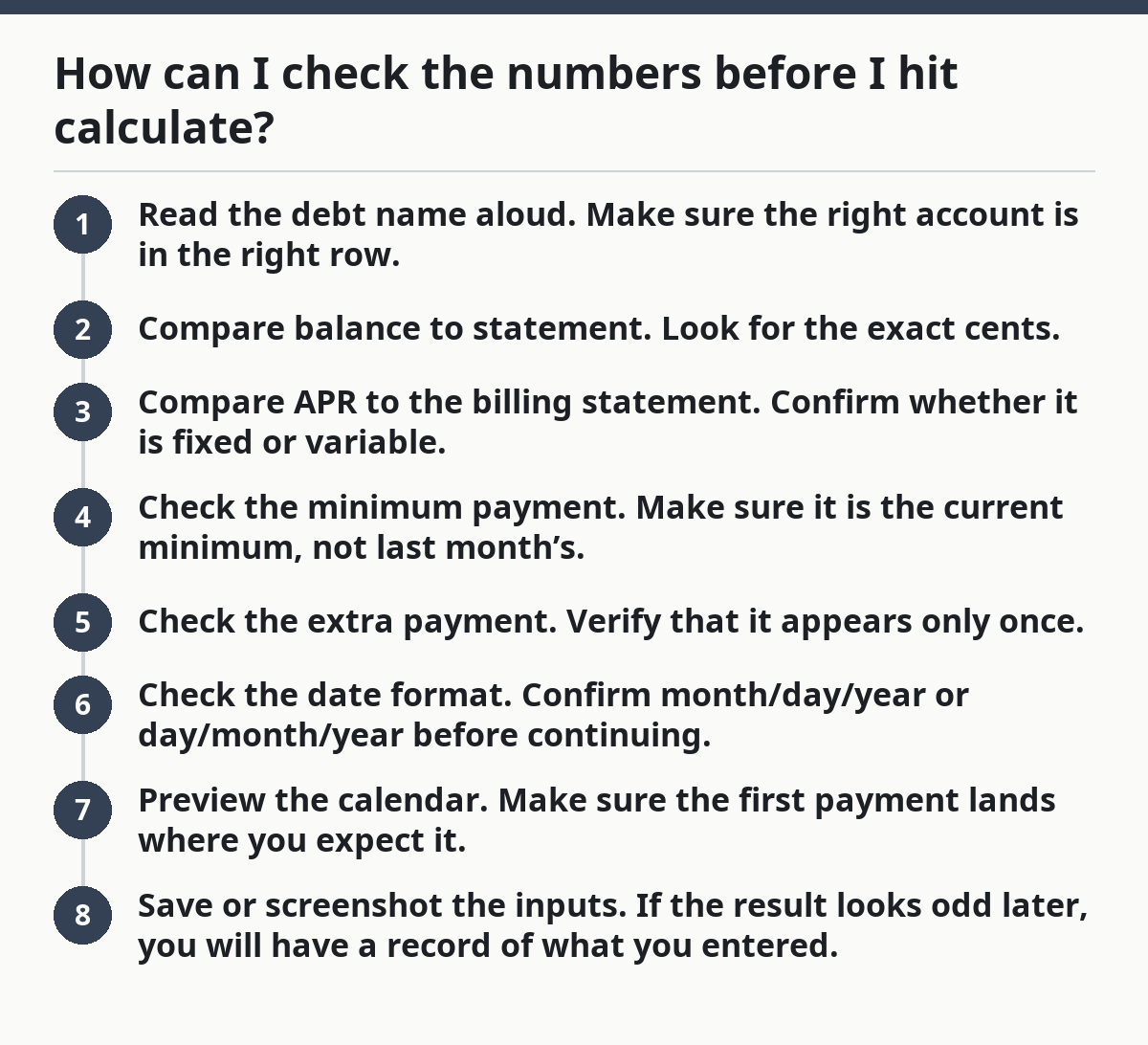
How can I check the numbers before I hit calculate?
Check the numbers by comparing the calculator screen to the statement, field by field, before you submit anything. A 60-second review is enough to catch most input errors.
Picture this: every line on the screen looks right, but you still feel uneasy. That’s the right time to slow down and do a final pass. The mistake that slips past here is often the one that costs the most time later.
Use this short pre-submit check:
- Read the debt name aloud. Make sure the right account is in the right row.
- Compare balance to statement. Look for the exact cents.
- Compare APR to the billing statement. Confirm whether it is fixed or variable.
- Check the minimum payment. Make sure it is the current minimum, not last month’s.
- Check the extra payment. Verify that it appears only once.
- Check the date format. Confirm month/day/year or day/month/year before continuing.
- Preview the calendar. Make sure the first payment lands where you expect it.
- Save or screenshot the inputs. If the result looks odd later, you will have a record of what you entered.
If the calculator lets you edit after generating a result, change one field at a time. That makes it easier to see which input caused the shift. A big change after one tiny edit is usually a sign that the field was entered in the wrong format.
The result only matters when the inputs match the statement.
What are the most common calculator mistakes?
The most common mistakes are entering the wrong balance, mistyping APR, and mixing up dates or payment frequency. Those errors change the payoff result more than most people expect. A one-line check against the statement usually catches them before the calculator does any harm.
How do I enter balances correctly?
Enter the current balance from the latest statement, with the cents included and no rounding. Do not use the original loan amount unless the statement still shows that exact figure as current. If the calculator wants a whole dollar amount only, follow its format and then confirm whether it rounds up or down.
Why does my result look wrong?
Your result usually looks wrong because one field does not match the statement or the payment schedule. Start with balance, APR, minimum payment, and payment date, then check whether the calculator expects monthly, biweekly, or weekly payments. If the result is still off, the calculator may be using different assumptions than your statement does.
Drafted with AI; not yet reviewed by a person.