Last updated: November 19, 2026
Key Takeaways
- A calculator uses the balance you enter, not the lender’s live system.
- Read the result as a dated projection, not a promise about the final bill.
- Start with the balance that matches the calculator’s date field.
- Keep the balance, fee, and date separate so you can spot what changed the result.
Debt payoff calculators can look wrong when post-balance fees arrive after the number on your statement. In this guide to how to read a debt payoff calculator when fees are added after the balance, the calculator is only as good as the balance date you feed it; if fees post later, the payoff date and total cost shift. The steps below show how to read that result without mistaking a statement balance for the real amount you still owe.
Who this applies to, and what you need in front of you
This applies if you are looking at a debt payoff calculator and your account can add a fee, finance charge, or other add-on after the statement balance is printed. It assumes you have the latest statement, the current account balance if the lender shows one, and the due date or posting date for any new charge.
This is information, not financial advice. Debt rules, billing rules, and posting order vary by lender and country, so a qualified adviser is the right person for your own situation if the account terms are unclear. For general billing and billing-statement timing, see the CFPB’s guidance on credit card billing and payments: https://www.consumerfinance.gov/ask-cfpb/what-is-a-credit-card-statement-en-61/
Picture this: you enter the statement balance, the calculator gives you a payoff month, then a late fee or finance charge lands three days later. The math is not broken. The input is stale. The gap between those dates is the whole problem here.
A statement balance is a snapshot. An actual payoff target is a moving number. If a calculator asks for the balance as of a certain date, the date matters as much as the amount.
Here’s the catch:
- Statement balance: the amount listed on the statement close date.
- Current balance: the amount that may already include posted charges after that close date.
- Payoff amount: the amount needed on a specific date to bring the account to zero.
If you want the broader context, the hub page on debt payoff calculators and hidden costs sits one layer above this guide. For related fee timing, see our page on finance charges and our page on statement balance vs current balance.
Why a calculator can look wrong after a fee posts
A calculator is not reading your lender’s live system. It is using the number you typed in, then projecting forward. If a fee posts after that number, the calculator treats the old balance as if it were still current, which pushes the result off by the fee amount plus any interest that keeps running.
That is most obvious with revolving accounts. A credit card can post a finance charge after the statement closes, then add a separate late fee, returned payment fee, or annual fee later in the month. One charge changes the balance; a second charge changes the interest that future months will see. For revolving accounts, see our page on credit card finance charges.
The truth is, the order of posting matters too. A payment can land before a fee, or a fee can post before the payment is credited. That changes how much of your payment reduces principal and how much gets eaten by charges.
Watch for these common account add-ons:
- Late fee
- Returned payment fee
- Annual fee
- Cash advance fee
- Foreign transaction fee
- Interest or finance charge posted at month-end
If the calculator does not let you separate those items, it may still be useful for rough planning. It is weaker for exact payoff dates. A 30-day projection built on an out-of-date balance can miss by one billing cycle.
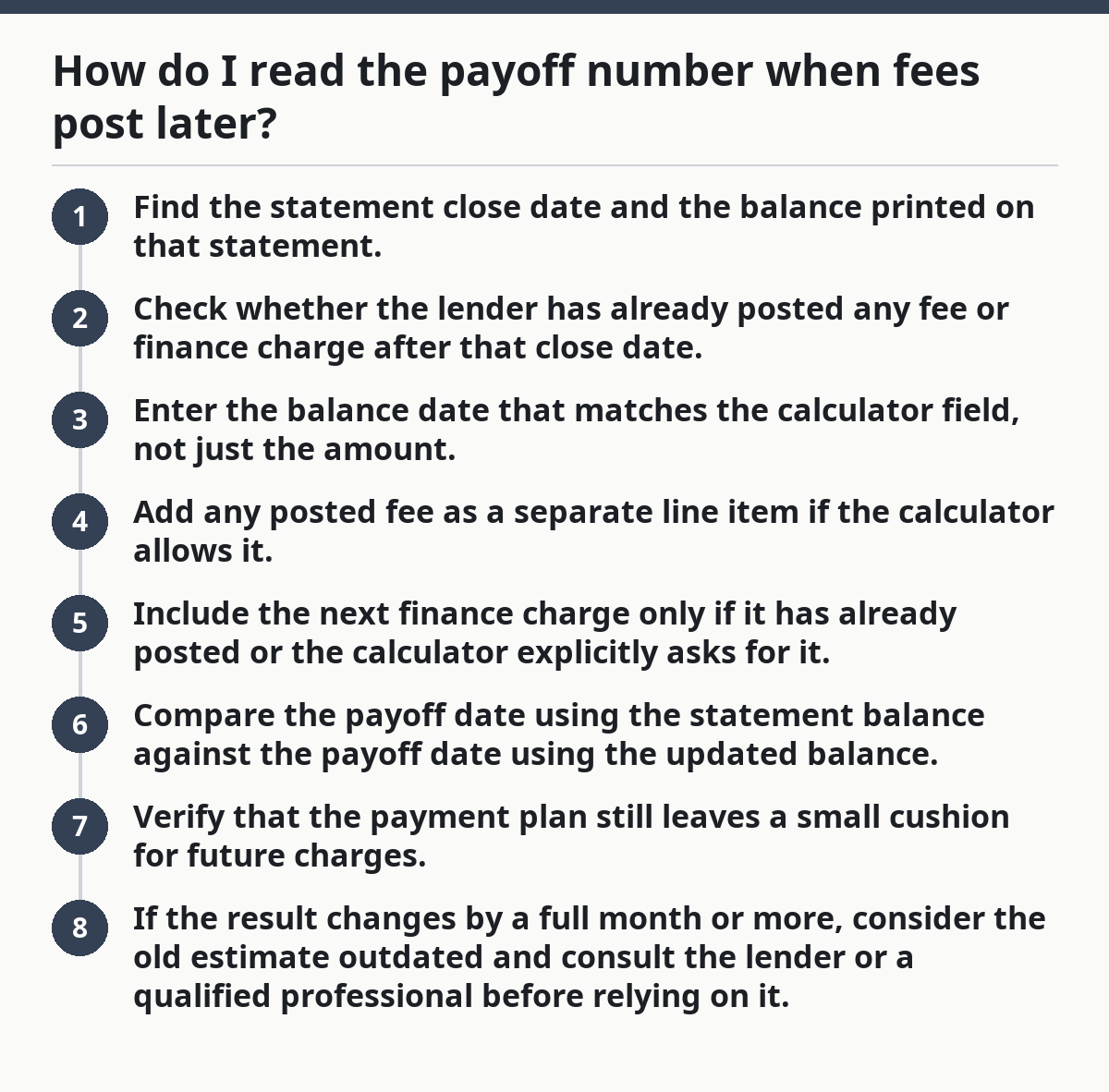
How do I read the payoff number when fees post later?
You read it as a projection from a point in time, not as a promise about the final bill. The number tells you what would happen if the balance stayed fixed. Once a fee posts later, you need to add that fee to the balance and then rerun the calculator.
Use this order:
- Find the statement close date and the balance printed on that statement.
- Check whether the lender has already posted any fee or finance charge after that close date.
- Enter the balance date that matches the calculator field, not just the amount.
- Add any posted fee as a separate line item if the calculator allows it.
- Include the next finance charge only if it has already posted or the calculator explicitly asks for it.
- Compare the payoff date using the statement balance against the payoff date using the updated balance.
- Verify that the payment plan still leaves a small cushion for future charges.
- If the result changes by a full month or more, consider the old estimate outdated and consult the lender or a qualified professional before relying on it.
The check is simple: the updated balance should match the lender’s current figure or be very close to it. If it does not, a posting delay is probably the reason. For account timing rules, see the CFPB’s billing and payment guidance: https://www.consumerfinance.gov/ask-cfpb/what-are-the-rules-for-credit-card-payments-en-51/
Two terms matter here. Posting means the charge has actually hit the account. Pending means it has not yet been posted. A pending fee may not belong in the payoff amount yet, but it can still change the next statement balance; if you are unsure, check the lender’s posted-transaction history or ask the lender to confirm.
What to enter first: statement balance, current balance, or payoff balance?
The right starting point is the balance that matches the date the calculator uses. If the tool asks for “current balance,” use the most recent posted balance you can verify. If it asks for “statement balance,” use the number from the statement and then add any fee that posted afterward.
Picture this: you are holding a bill that says $1,200, but the app shows $1,238 because a $38 fee posted two days later. Entering $1,200 will make the calculator too optimistic. Entering $1,238 without checking whether another fee is still pending can make it too low again.
Here is the clean way to sort the numbers:
- Use statement balance when the calculator is built around a billing cycle.
- Use current posted balance when the lender dashboard already includes the latest charges.
- Use payoff quote when the lender gives you a date-specific amount to close the account.
A payoff quote is different from a balance. It may include interest through a specific date and sometimes a per-diem charge, which is the daily interest amount. If you have that quote, it is usually more accurate than a stale balance, but only for the date quoted.
If the calculator has a field for “extra charges,” put fees there instead of burying them in the balance. That keeps the monthly interest math cleaner. For related definitions, see our page on payoff quotes.
Step by step: how to factor late fees and finance charges into the calculator
This is the part most people skip, and it is the part that changes the answer. The trick is to keep the balance, the fee, and the date in separate lanes so you can see what changed the result.
Start with the statement and the transaction list. Then work through the calculator in a fixed order. Do not guess at a fee that has not posted yet unless the lender already says it will post on a known date.
- Record the statement balance exactly as printed. Use the number and the close date together. Verify the close date on the first page. If the date is missing, the statement is not enough for a precise estimate.
- List every posted charge after that date. Include late fees, annual fees, returned payment fees, and finance charges. Verify each one on the transaction history. If a charge is pending only, mark it as pending.
- Enter the balance date the calculator asks for. Match the date field to the statement close date or the current posted date. If the calculator has no date field, note that the result is less precise.
- Add posted fees as separate entries when possible. Keep the original balance untouched. Verify that the calculator total rises by the fee amount. If it does not, the tool may be ignoring the extra charge.
- Check whether the calculator compounds interest on the new balance. A finance charge can make next month’s interest larger. Verify the next period’s estimate changes after the fee posts. If it stays flat when the account is revolving, the tool may be too simple.
- Run the estimate twice. First with the statement balance only, then with the balance plus posted fees. Compare the payoff date and total paid. If the dates are the same despite a real fee posting, the calculator is not sensitive enough for this account.
- Test the payment date, not just the payment amount. A payment made before the fee posts can avoid part of the interest drag. Verify the calculator uses the same payment date you plan to use. If it assumes a different date, the result can be off by one cycle.
- Save the updated figure for the next statement. The new baseline should include every posted charge. If the next statement arrives with another fee, repeat the process.
You do not need a fancy tool to spot the problem. You need a clean paper trail and the right dates. For fee timing and account records, see our page on posted vs pending transactions.
What to check before you trust the result
A payoff estimate is only useful if the inputs match the account’s billing rules. Many people miss one detail and then blame the calculator for a lender’s posting order.
Use this short check before you treat the result as real:
- The statement close date matches the balance you entered.
- Any fee shown in the transaction list is included.
- The calculator is using the same monthly or daily interest convention as the account.
- A payment made on the 1st is not being treated like a payment made on the 15th; if the tool cannot distinguish dates, check with the lender or a qualified professional.
- The account has not added a new finance charge since the last statement.
- The result reflects the same currency and country rules as the account.
One plain test helps a lot: if you add a $0 fee and the result changes, the calculator is probably misreading the input. If you add a real fee and nothing changes, the tool may be ignoring hidden charges.
This is also where account type matters. A credit card, a personal loan, and a store card may all use different posting rules. One may apply interest daily; another may use a fixed monthly schedule. The same calculator screen can mean different things on different accounts.
If the lender publishes payoff instructions, compare them with the calculator. The lender’s own payoff quote usually controls the final number for that account, not the estimate on a third-party app.
When this approach stops working
This method stops working when the account’s fees are not yet posted, not clearly labeled, or not part of the calculator’s math. In those cases, the estimate becomes too rough to use for a close payoff decision.
The fee is only pending: it may post later or not at all; check the posted transaction or ask the lender before treating it as part of the payoff amount.
The lender gives a payoff quote with a date: that quote already includes the timing rules — use that quote for that date instead of a generic calculator.
The account posts interest daily and the calculator uses monthly math: the result can drift — switch to a tool that shows daily interest or ask the lender for a payoff figure.
The balance changed after the statement closed: the statement is stale — update the input to the current posted balance before using the estimate.
The payment is due before a fee posts: the order can change the amount credited to principal — check the transaction timeline first.
The account has multiple add-ons in one cycle: a late fee, a finance charge, and an annual fee can stack — treat the estimate as a range, not a single exact number.
On the flip side, if the fee is already posted and the calculator lets you enter the updated balance, the method works well enough for planning. It is not perfect. It is just honest.
Common mistakes that throw off the payoff result
The biggest mistake is mixing a statement balance with a current balance. That undercounts the debt and can make the plan look faster than it is. The fix is to match the balance to the right date.
Another mistake is folding a fee into a regular payment. That hides the change and makes it harder to see whether the fee posted at all. Keep fees separate from scheduled payments so the calculator can track them correctly.
A third mistake is ignoring finance charges because they do not look like “new debt.” They are new debt. If interest posts after the statement, it changes the next balance and can change the payoff month.
A fourth mistake is relying on a calculator that cannot show posting order. If the tool does not let you enter fee dates, it cannot show whether a fee landed before or after the payment. That matters when the account charges interest on the unpaid part.
A fifth mistake is treating a pending charge like a posted one. That can make you overestimate the payoff amount and overstate what you still owe. Use pending items as a warning sign, not as a final number.
A simple paper ledger or spreadsheet can fix most of this. One row for statement balance, one row for posted fees, one row for payments, and one row for the next finance charge is enough for many accounts. A 3-line note beats a fuzzy memory every time.
Where to get a better number when the estimate is still fuzzy
A better number comes from the lender’s own payoff quote, the live account balance, or a calculator that lets you separate charges by date. If none of those are available, the safest move is to treat the result as a rough estimate only.
Picture this: you are trying to plan a payoff for a card that adds a fee at the end of every cycle. A generic calculator might still show progress, but it cannot see the next fee until it posts. That is why the result can look clean and still be wrong by a full billing cycle.
Use the following sources in this order:
- Lender’s payoff quote for a specific date.
- Current posted balance from the account dashboard.
- Statement balance plus posted fees.
- A calculator that allows date-based charges.
For a broader framework on hidden charges and calculator limits, the hub article on debt payoff calculators and hidden costs is the right next stop. It covers the larger set of fee problems this page only points at.
FAQ
Why do fees change payoff results?
Fees change payoff results because they raise the balance that interest is calculated on. If a late fee or finance charge posts after the statement balance, the calculator’s old number is no longer current. The result can shift by one cycle or more, depending on the account’s posting rules and payment timing.
What fees should I add to my estimate?
Add any fee that has already posted to the account. That usually includes late fees, returned payment fees, annual fees, cash advance fees, and finance charges that appear on the transaction list.
Drafted with AI; not yet reviewed by a person.